Download Forticlient for Mac
- Click the following link to download the Forticlient for Mac: Forticlient Download
- If that link does not work, go to the following URL and download the Mac version: http://forticlient.com/#download
- Go to the download and run the ForticlientOnlineInstaller.dmg
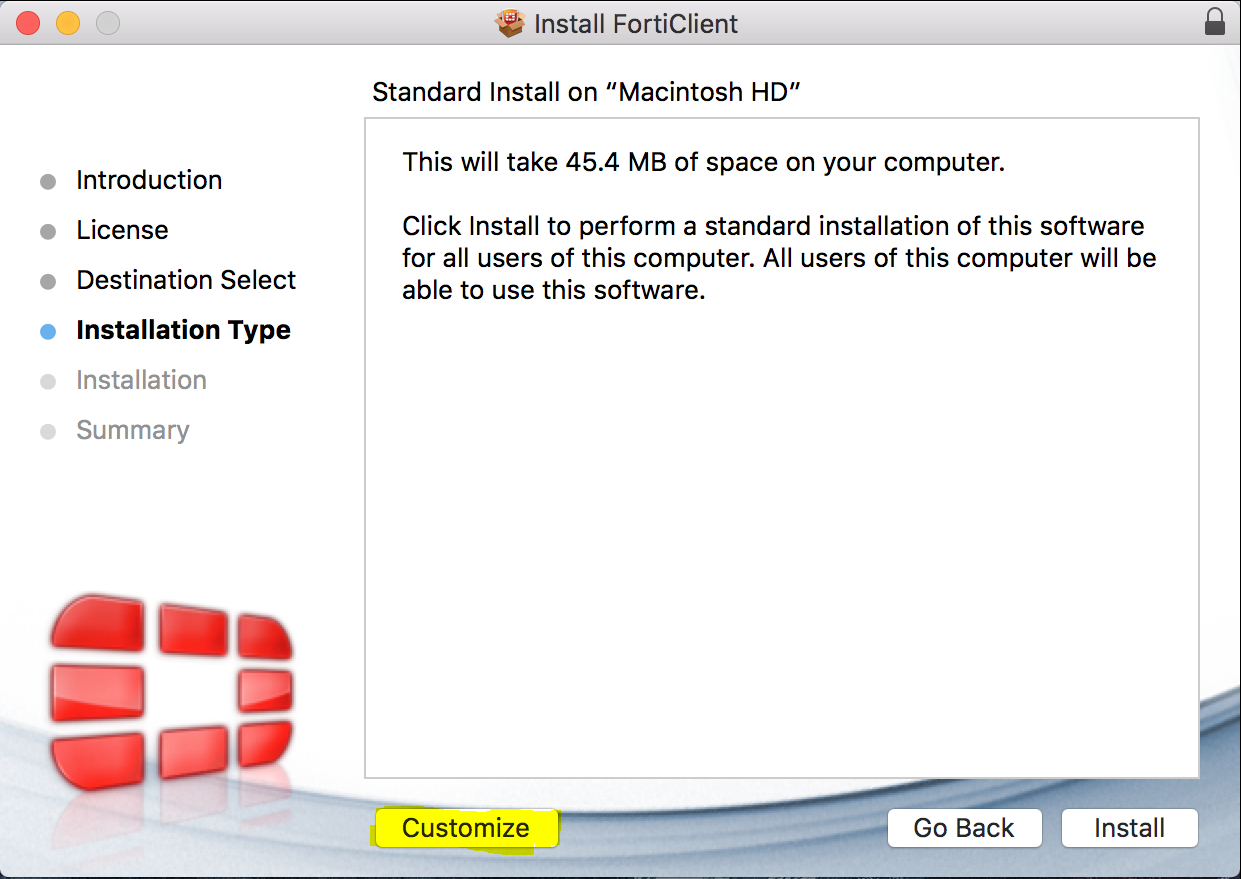
- At the Installation Type page, click Customize
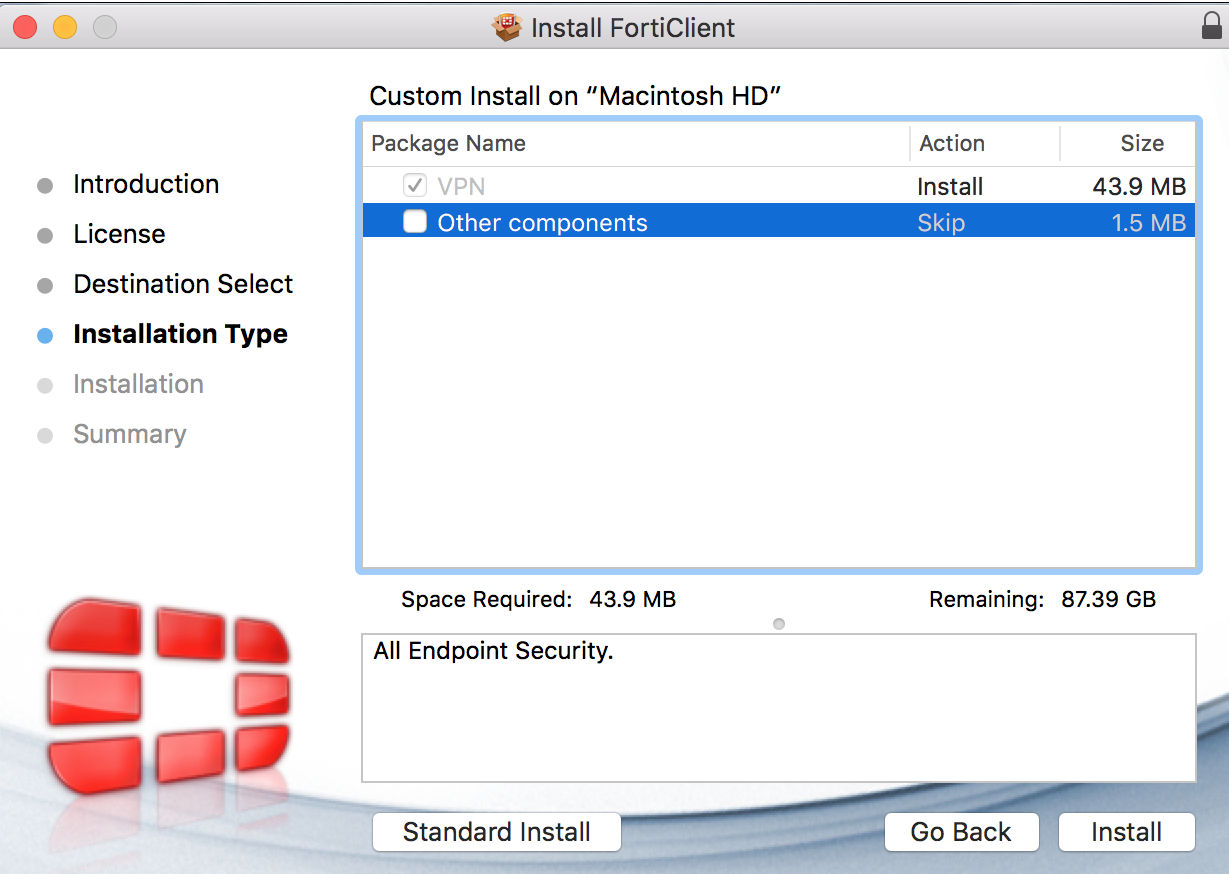
- Uncheck the Other Components checkbox and then click Install
Download Microsoft Remote Desktop Connection
- Go to the App Store and search for Microsoft Remote Desktop and install
Forticlient - Configuration
- Open the Forticlient
- Click Remote Access to the left of the window if it is not already selected. Proceed to click the gear icon
 next to VPN Name and then Add a New Connection.
 - Enter the information as you see it in the below image and click Add
- IMPORTANT NOTE: If your computer is located in the LA/SF office, enter vpnwest.careergroupinc.com for Remote Gateway. If it’s in NY, enter vpneast.careergroupinc.com. Also be sure to enter the username you use to log into your PC in the office.

- IMPORTANT NOTE: If your computer is located in the LA/SF office, enter vpnwest.careergroupinc.com for Remote Gateway. If it’s in NY, enter vpneast.careergroupinc.com. Also be sure to enter the username you use to log into your PC in the office.
Remote Desktop Connection – Configuration
- Open Microsoft Remote Desktop
- Click the + icon to add a new connection
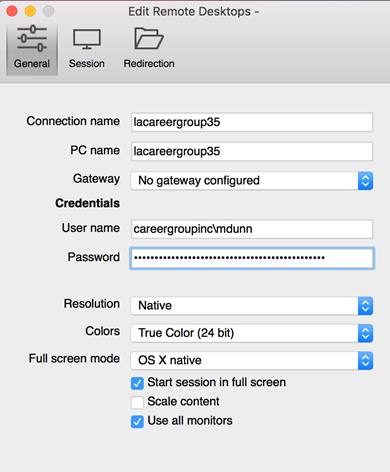
- In the Edit Remote Desktops window that opens, enter the information below:
- Connection name and PC name: enter computer name that Support provides you
- User name: enter your username in this format careergroupinc\username
- Password: Enter password you use to log into your work computer
- Close this window when complete
Connecting to your work computer
Please note that these are the only steps needed to connect going forward.
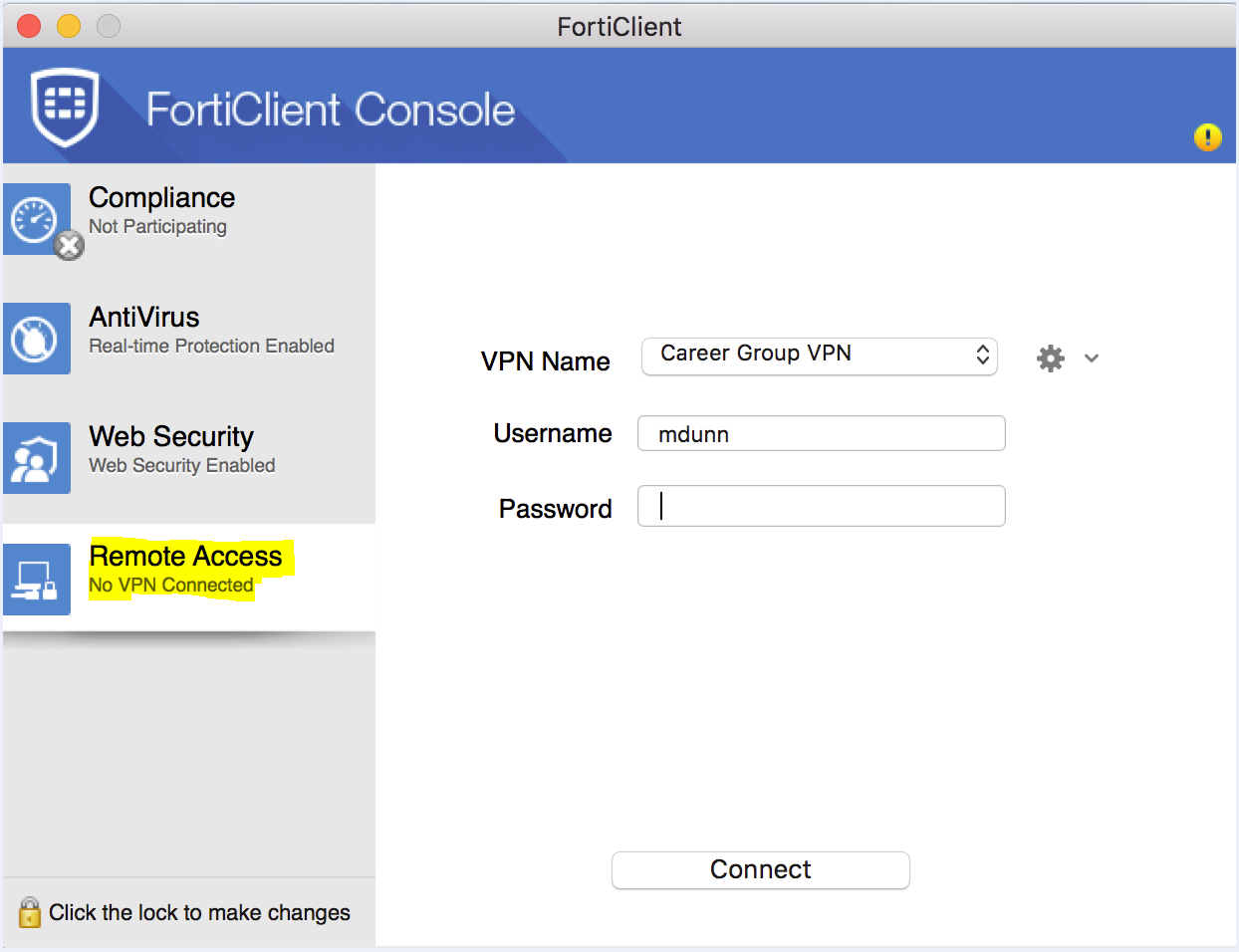
- Open Forticlient. Ensure Remote Access is selected. Then make sure Career Group VPN is selected next to VPN Name. Enter your password and click connect.
- Open Remote Desktop Connection and double-click your computer name under My Desktops. Be sure to click continue if a Verify Certificate window pops up
0 Comments