Forticlient – PC Installation Instructions
- Click here to download the installer
- If the link doesn’t work, go to http://forticlient.com/#download and download the appropriate version for your computer
- Open the downloaded file
- Read the License Agreement and accept the terms of use by checking the box
- Click Next
- Click VPN ONLY (THIS IS IMPORTANT)
- Click Next
- Click Install
- Click Finish
Forticlient – Configuration
- Open Forticlient by double-clicking the icon on your desktop

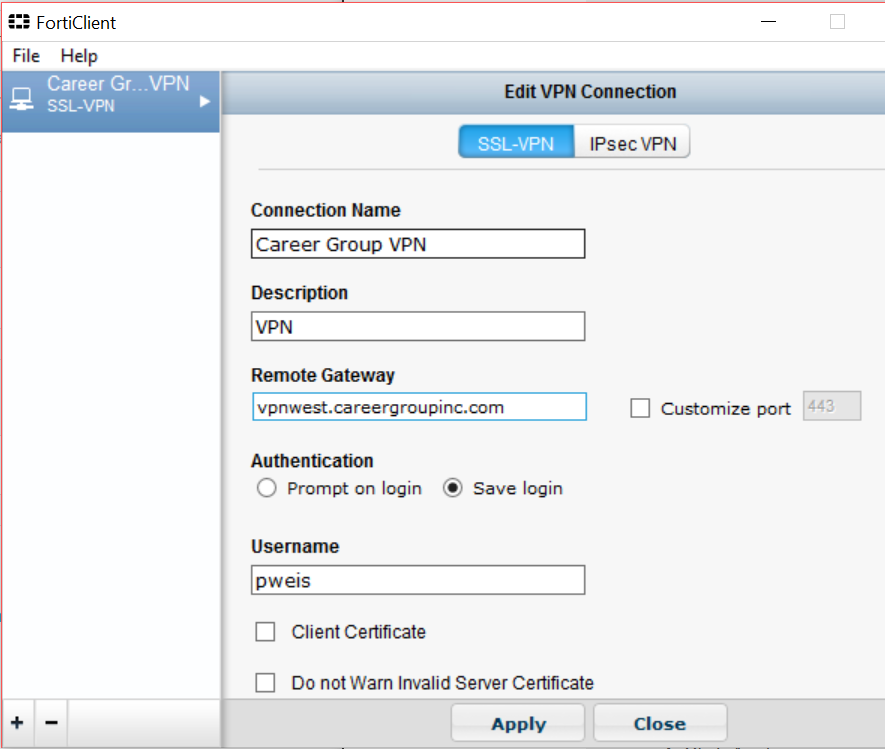
- Click “Configure VPN”
- Enter the following
- Connection Name: Career Group VPN
- Description: VPN
- Remote Gateway will depend on which office you work in.
- LA/SF: vpnwest.careergroupinc.com
- NY: vpneast.careergroupinc.com
- Authentication: Change this to Save login and then enter your username for the office (e.g. pweis)
- Click Apply
Remote Desktop Shortcut
- Right-click on your desktop and go to New > Shortcut
- Type the following for the location of the item but be sure to use your computer name. In this example, we used computer name LACAREERGROUP05:
mstsc.exe /v:LACAREERGROUP05
(if you’re unsure of your computer name, please email Support to request it)
- Type the following for the location of the item but be sure to use your computer name. In this example, we used computer name LACAREERGROUP05:
- Click Next
- Type a name for the shortcut: WORK COMPUTER
- Click Finish
Connecting to your work computer
Please note that these are the only steps required going forward to connect to your work computer
- Open Forticlient by double-clicking the icon on your desktop
- Enter your computer network password and click Connect
- Double-click the previously created Remote Desktop shortcut named WORK COMPUTER
- Enter your credentials
0 Comments